


Our Latest Products!
-
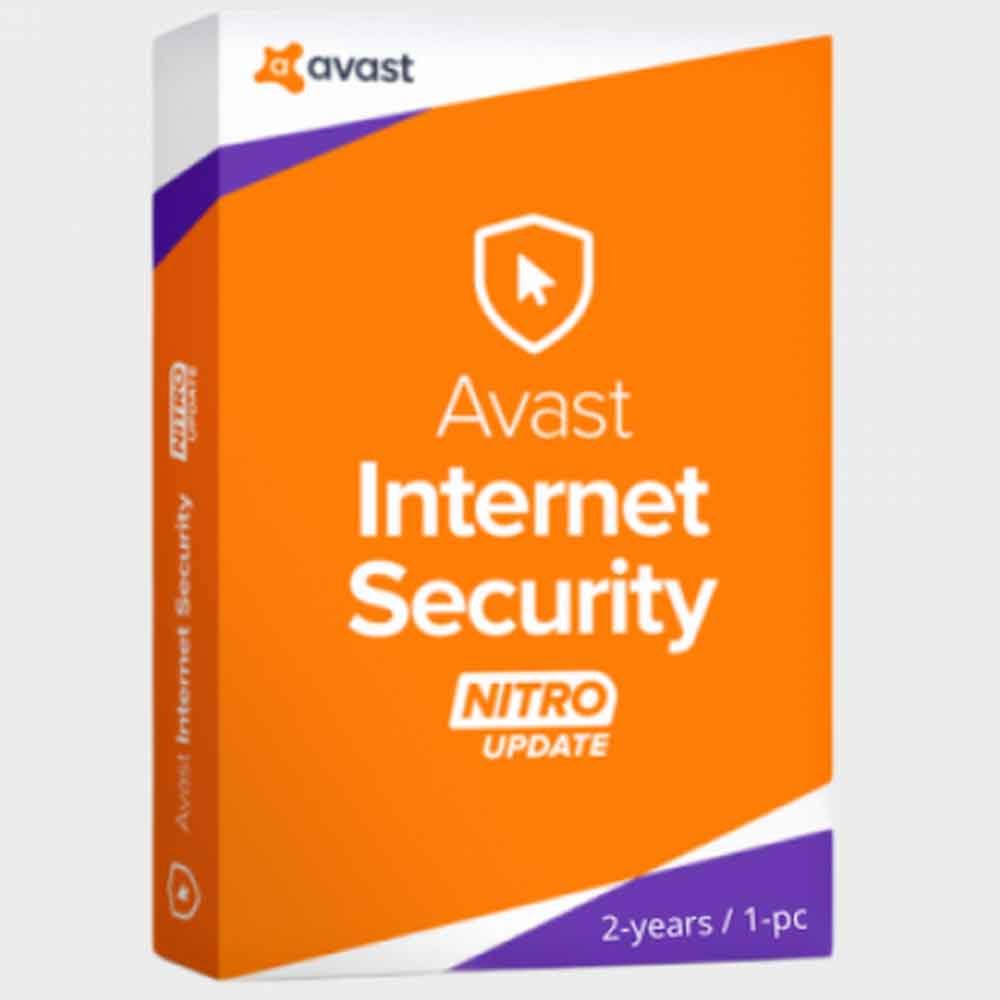
Avast Internet Security 2-years / 1-pc – Global
$33.99 Buy Now -
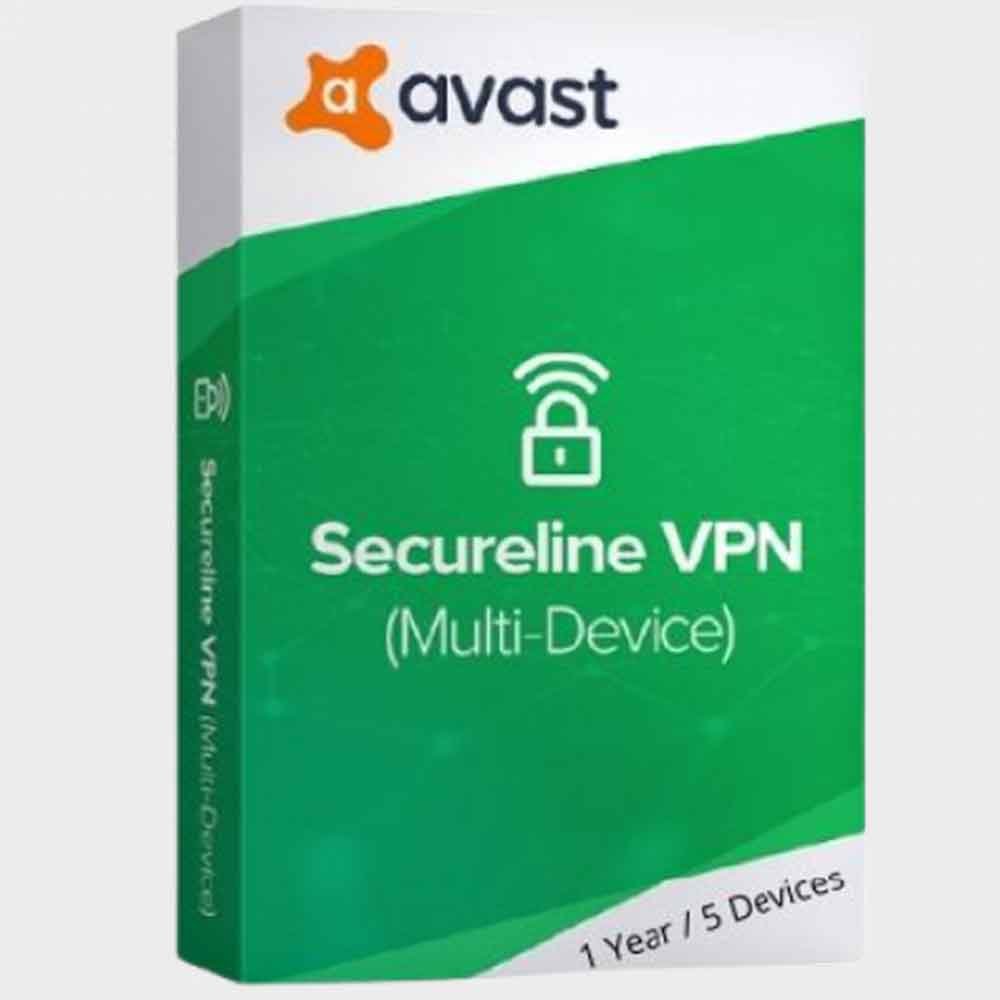
Avast Secureline – 1 Year / 5 Devices – Global
$59.88 Buy Now -
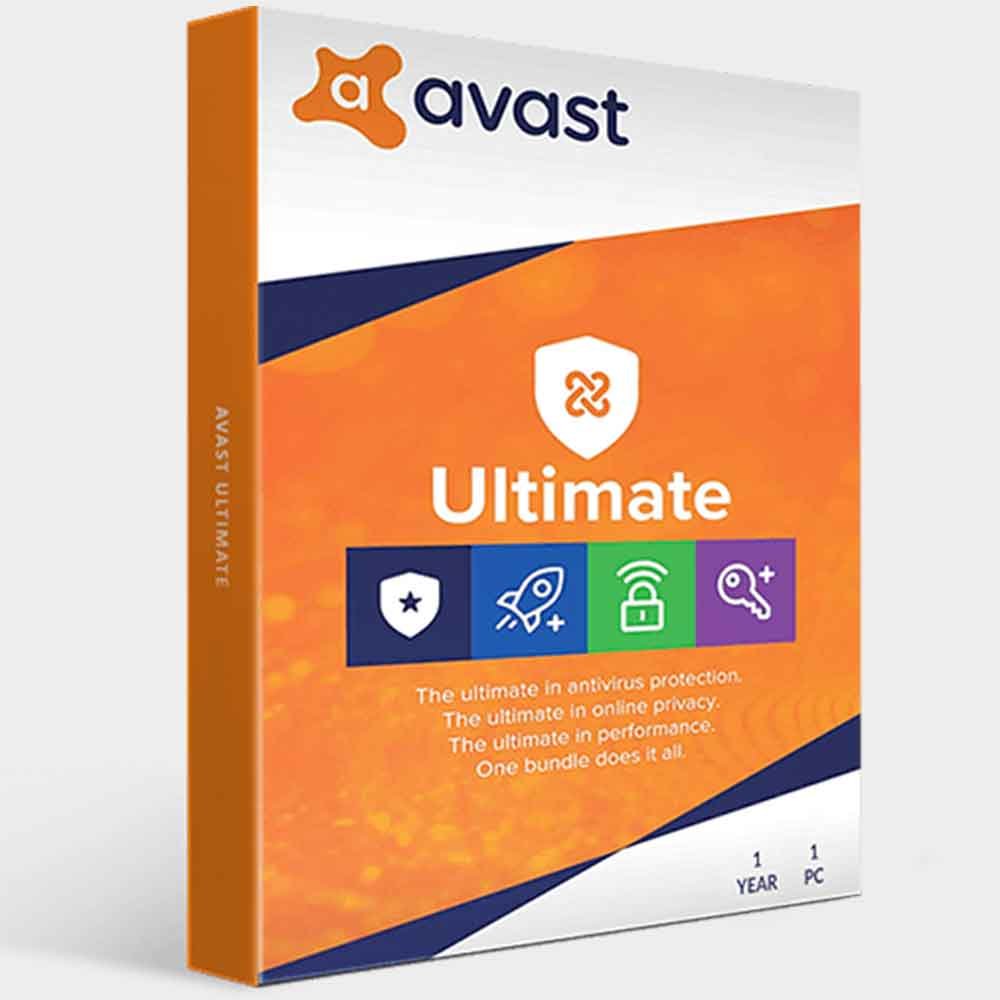
Avast Ultimate 1PC / 1 Years
Buy Now -
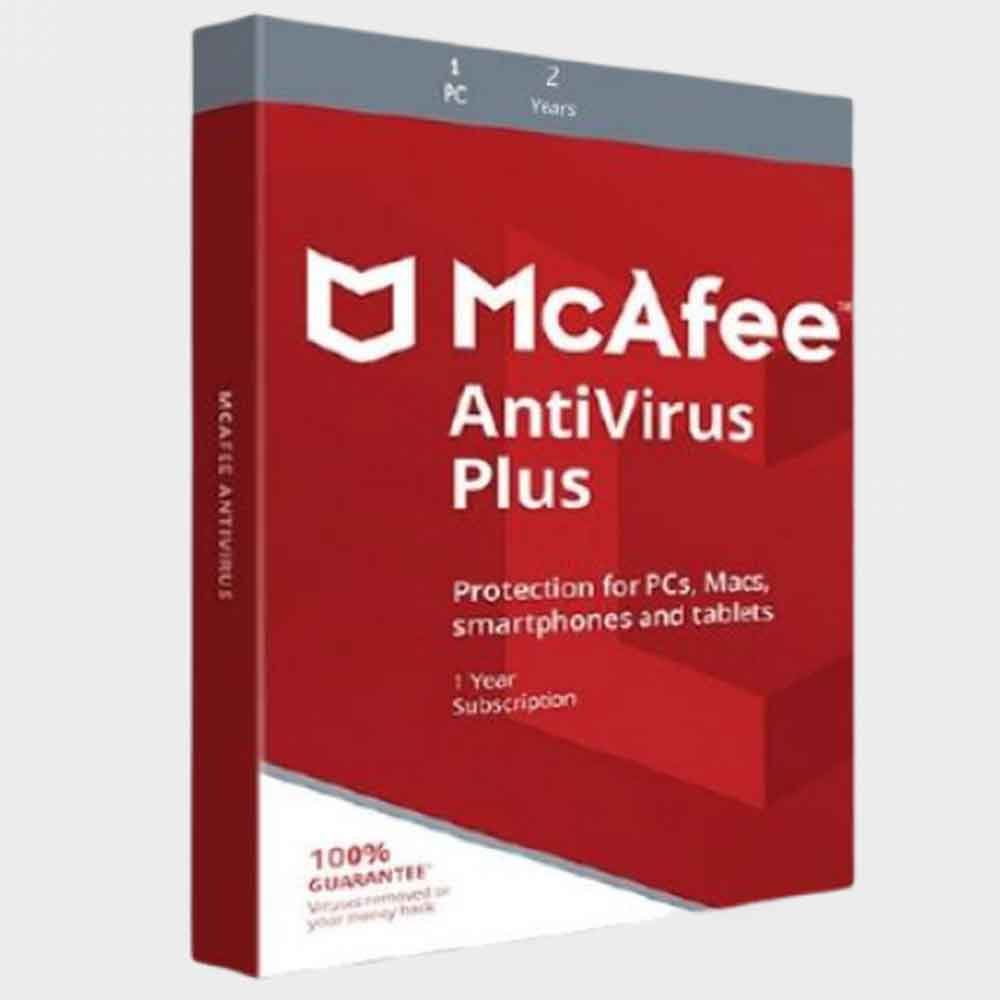
McAfee® AntiVirus Plus – 1 Device 2 Years
$49.99 Buy Now -
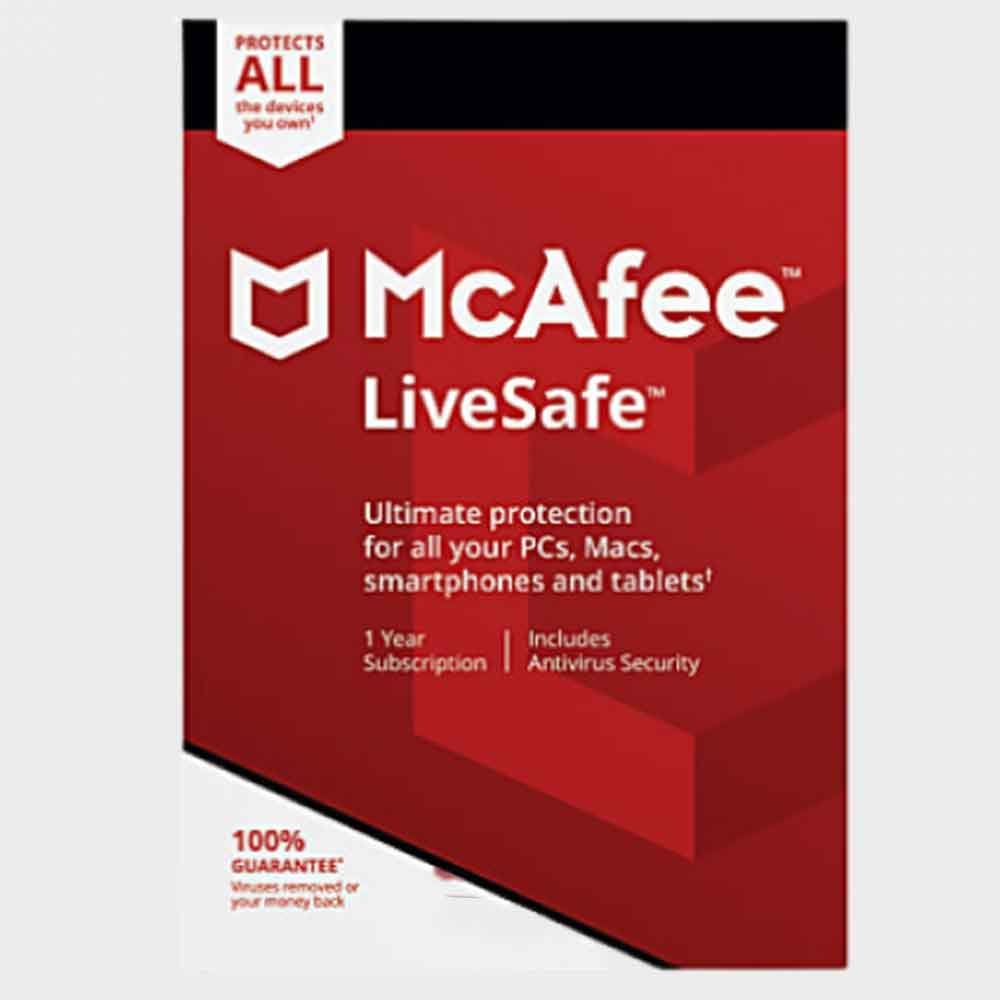
McAfee® LiveSafe™ 1-Year Subscription
$30.99 Buy Now -

McAfee® Safe Connect VPN Yearly Plan
Buy Now -
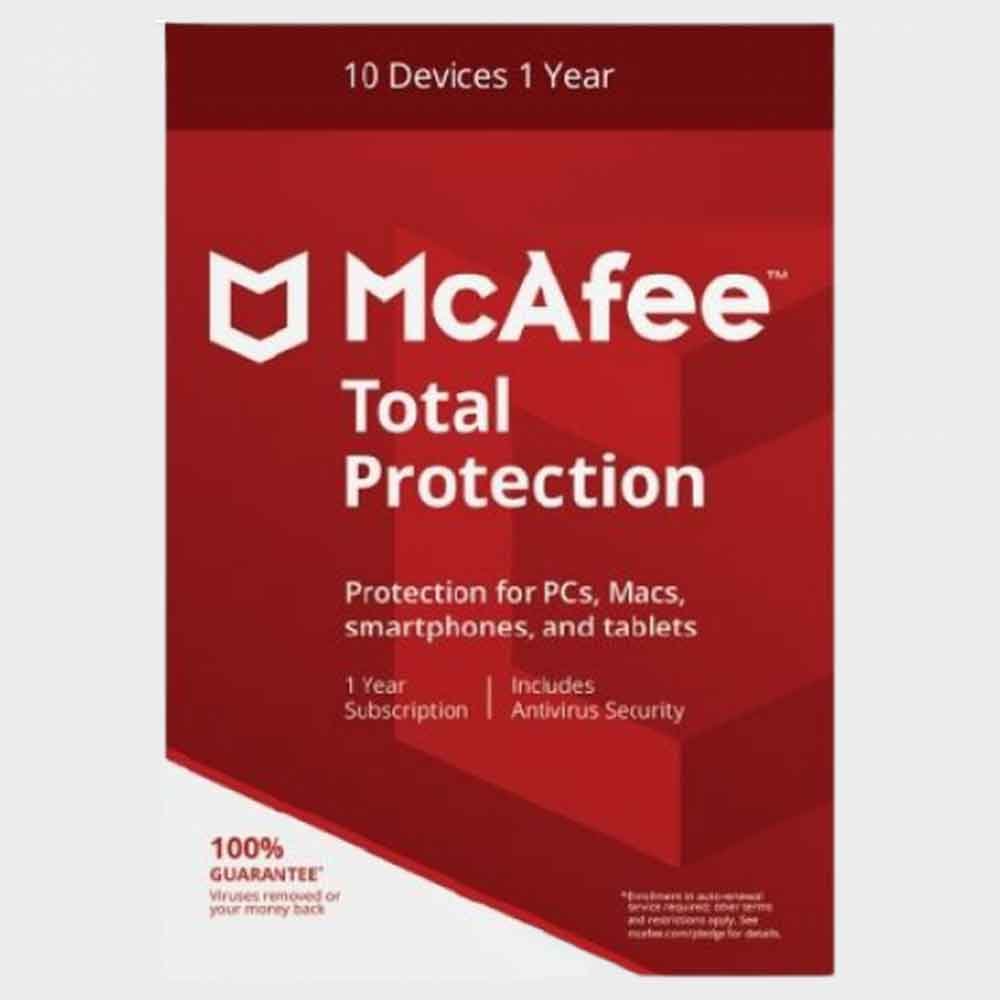
McAfee® Total Protection Family Pack – 10 Devices 1 yr
$79.99 Buy Now -
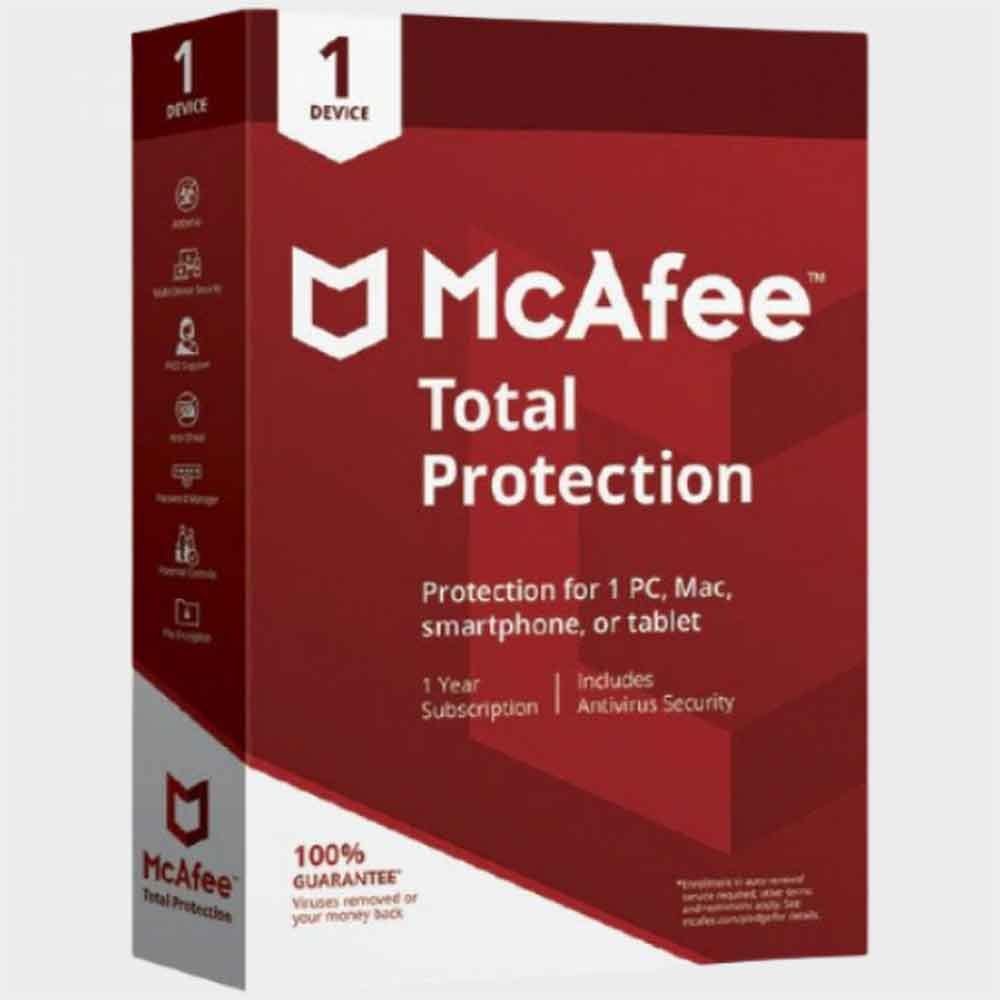
McAfee® Total Protection, 1 Device, 1 Year
$49.99 Buy Now -
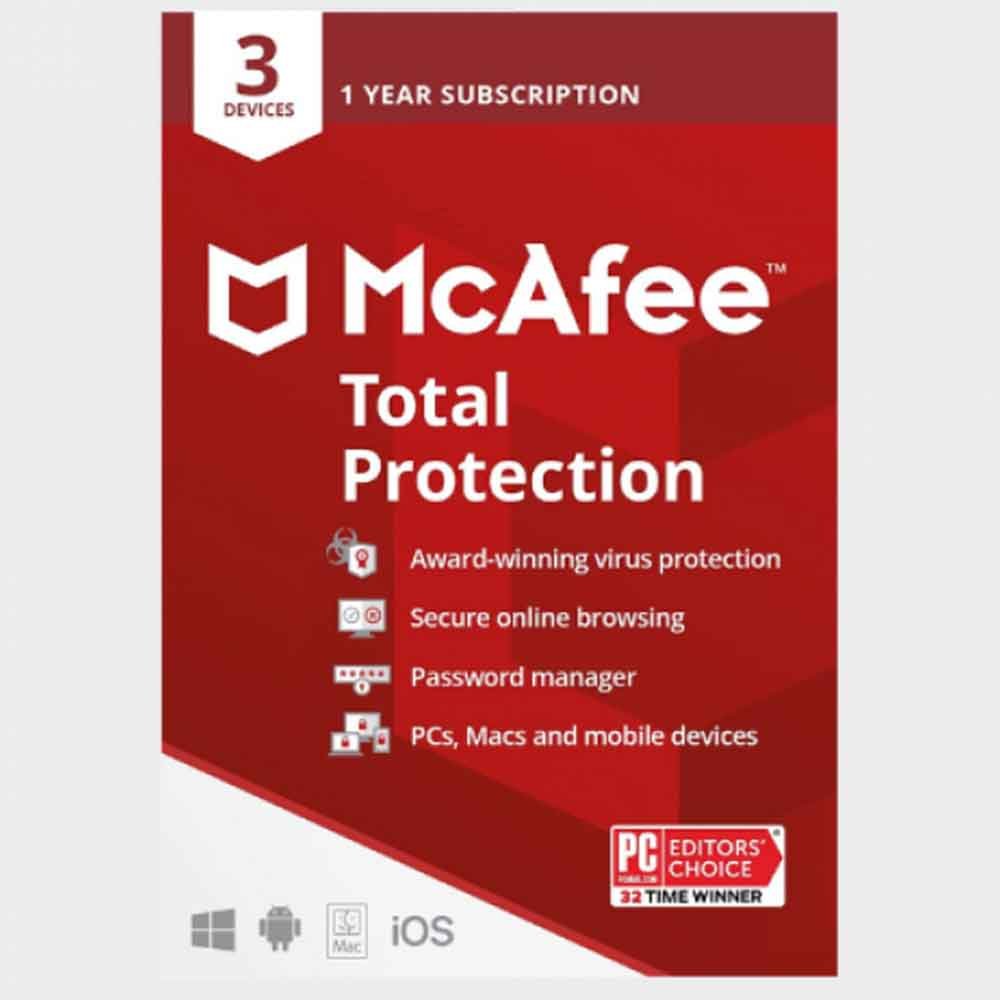
McAfee® Total Protection, 3 Device, 1 Year
$24.99 Buy Now -
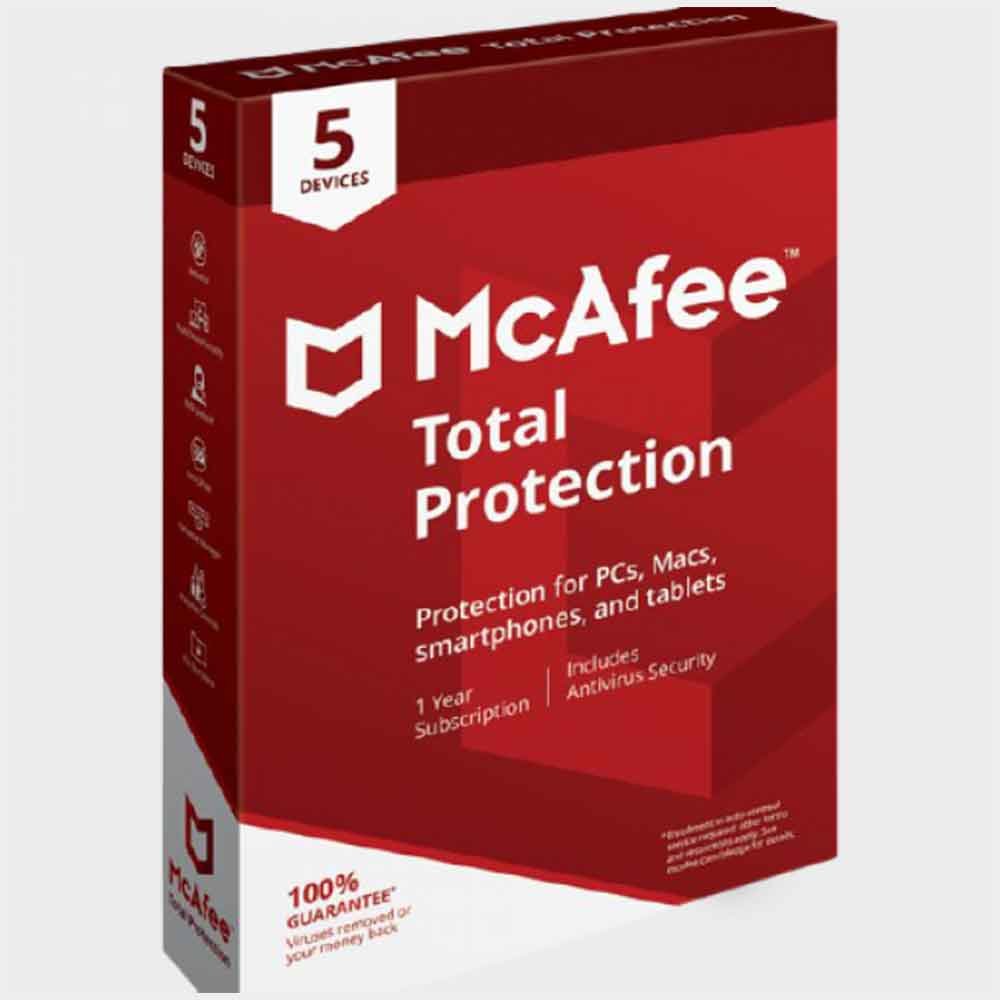
McAfee® Total Protection, 5 Device, 1 Year
$49.99 Buy Now -
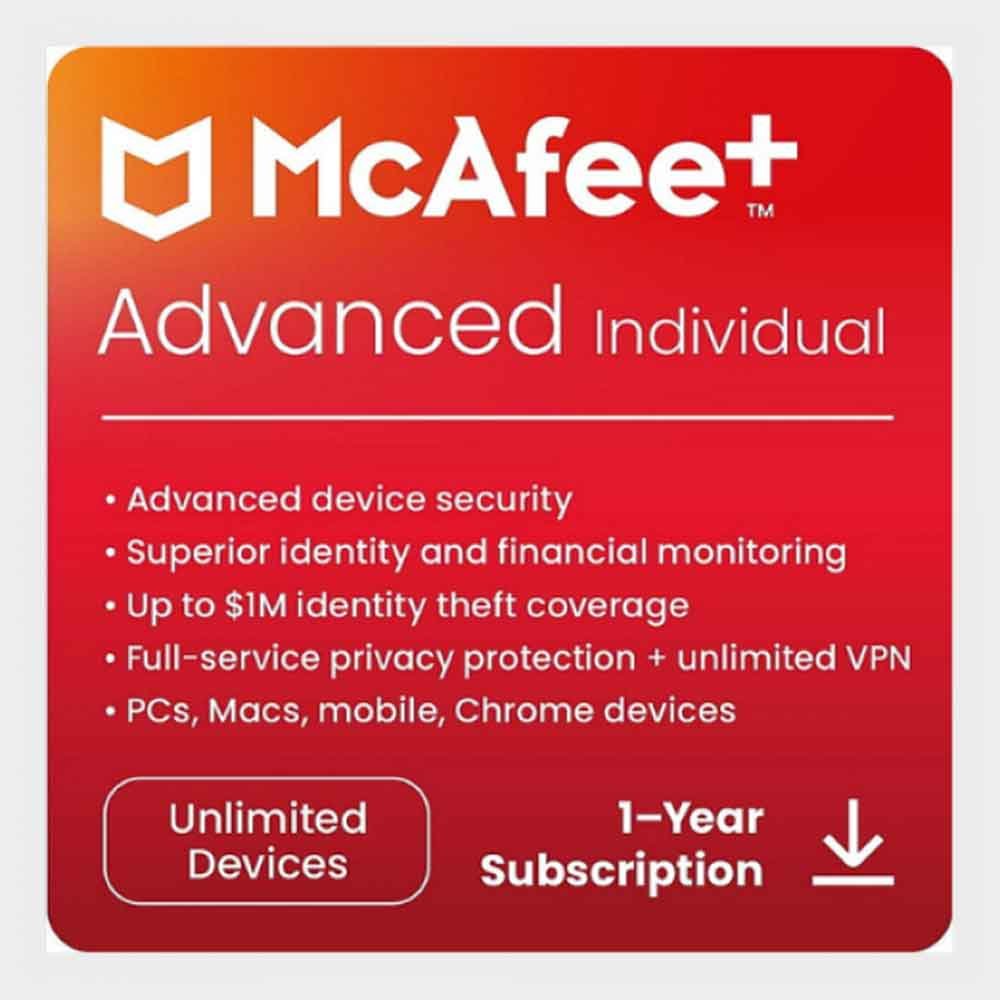
McAfee+ Advanced Unlimited Device (1-Year Subscription)
$89.99 Buy Now -

McAfee+ Premium – Unlimited Device (1-Year Subscription)
$49.99 Buy Now -
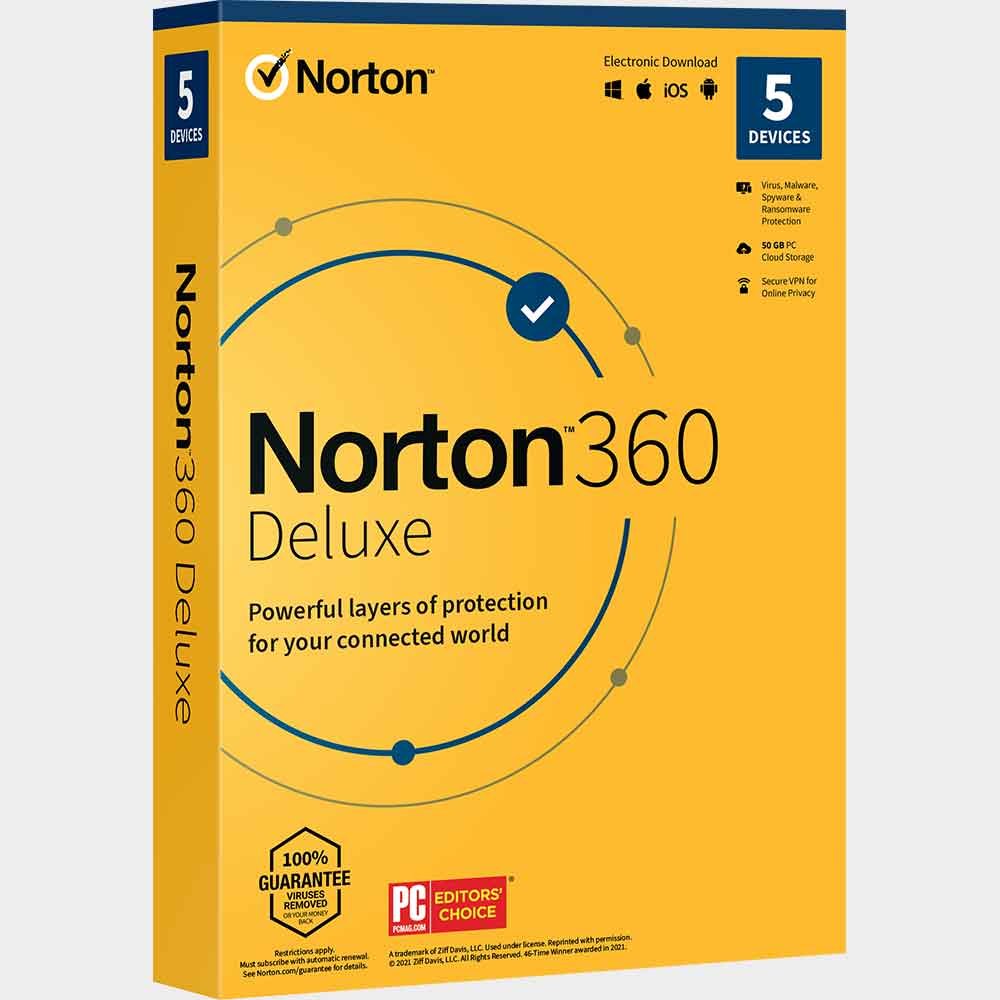
Norton 360 Deluxe 5 Devices
$39.99 Buy Now -
Sale!
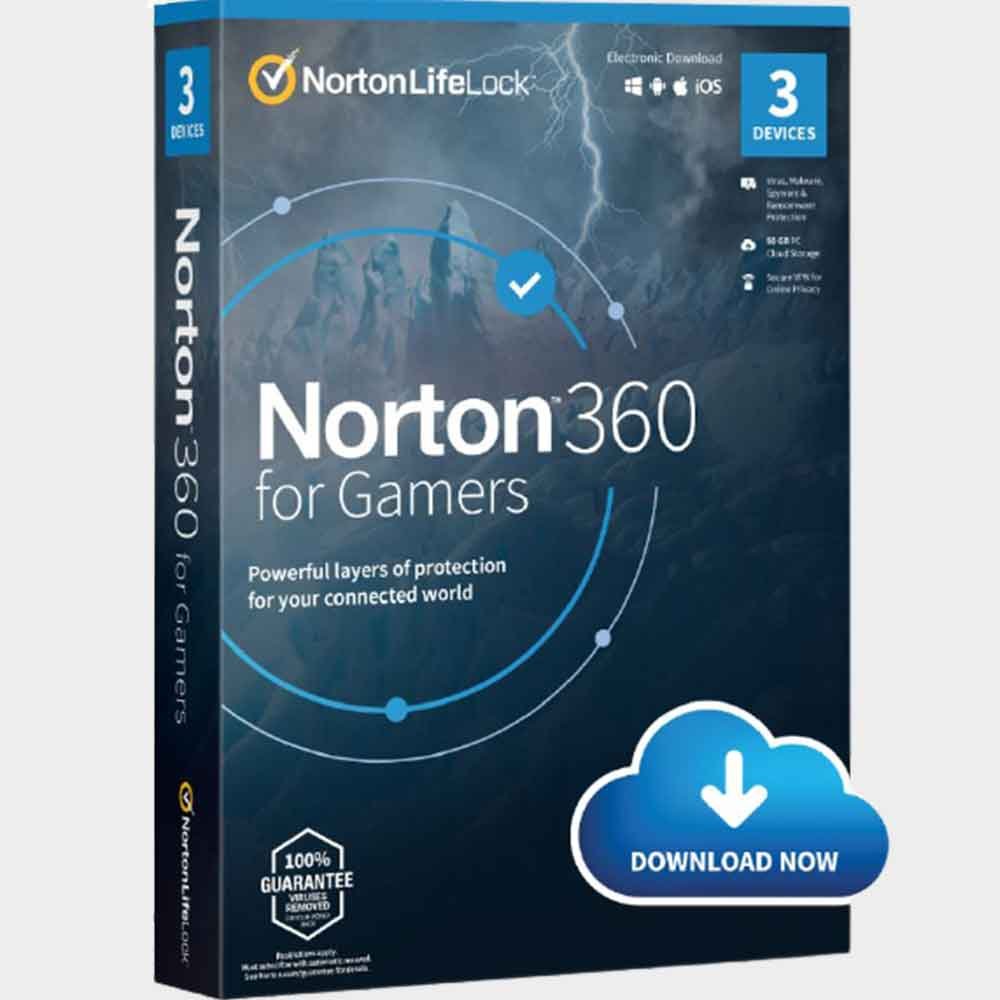
Norton 360 For Gamers
Original price was: $34.99.$29.99Current price is: $29.99. Buy Now -
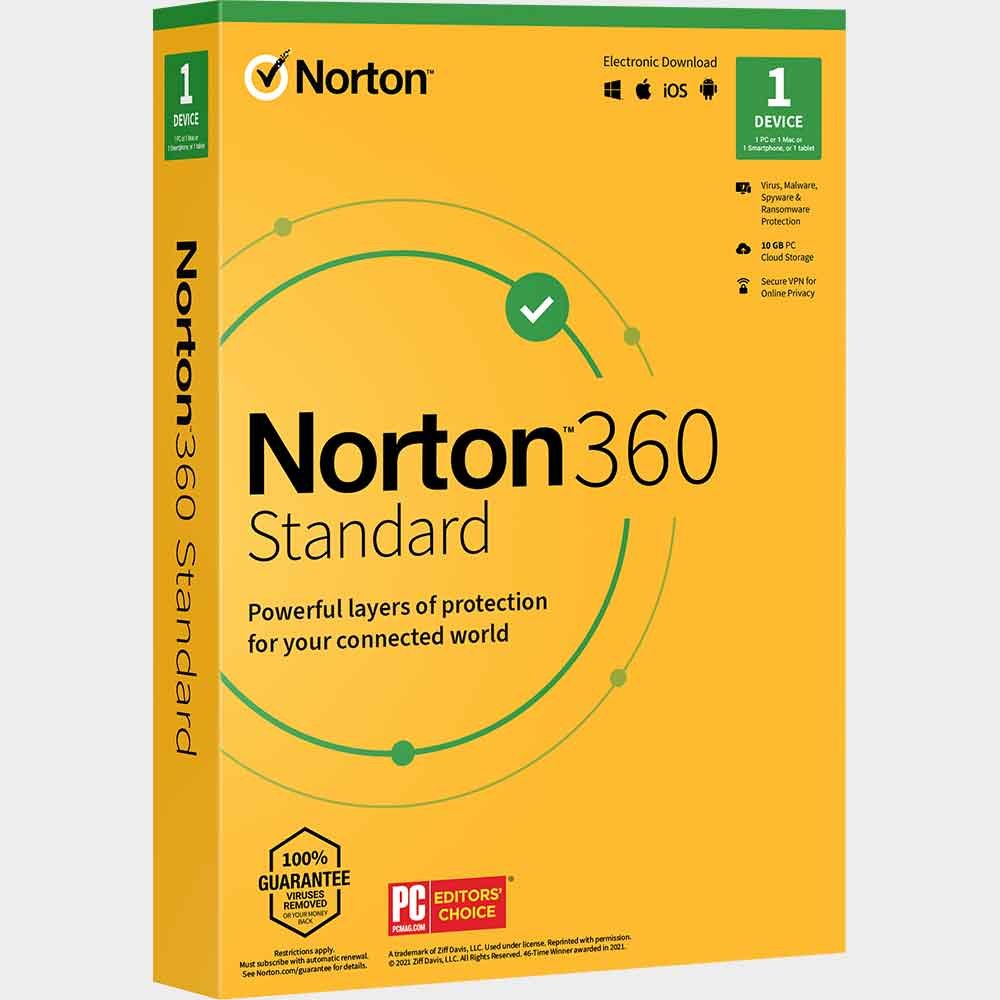
Norton 360 Standard
$34.99 Buy Now -
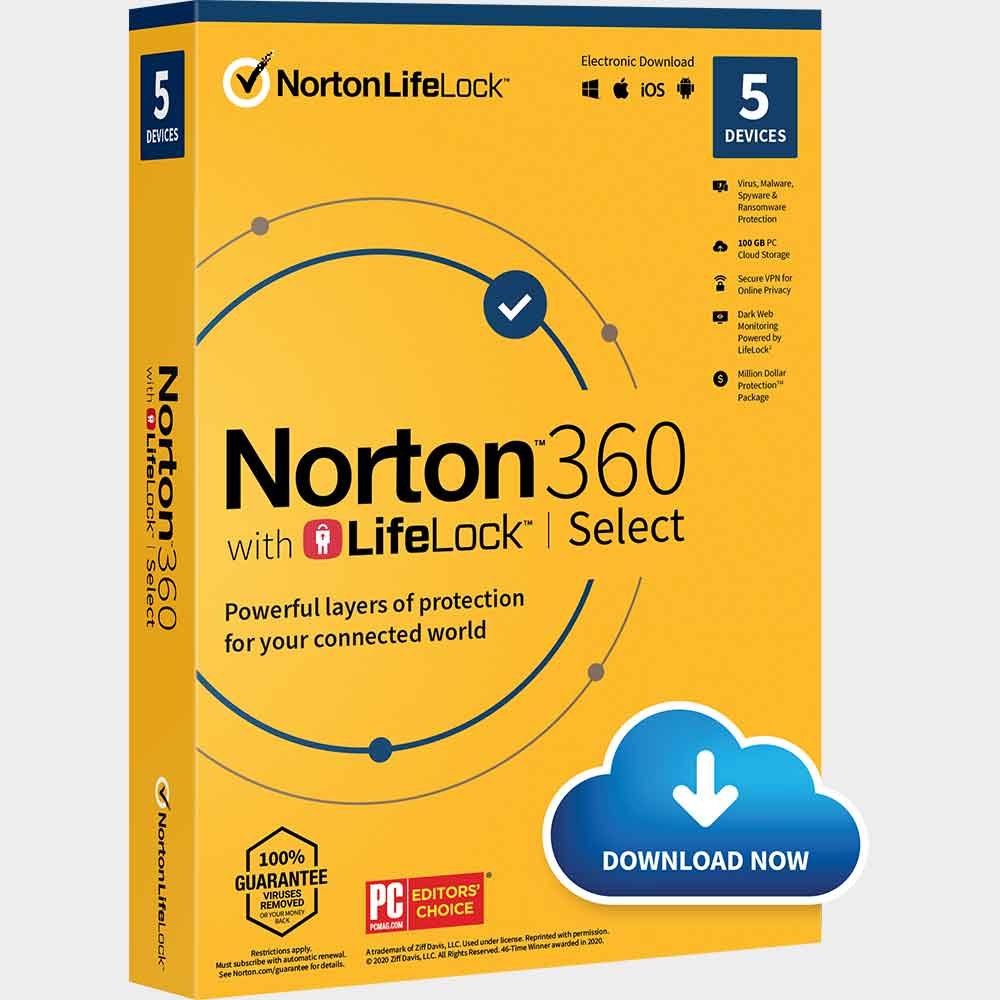
Norton 360 with LifeLock Select
$99.49 Buy Now -
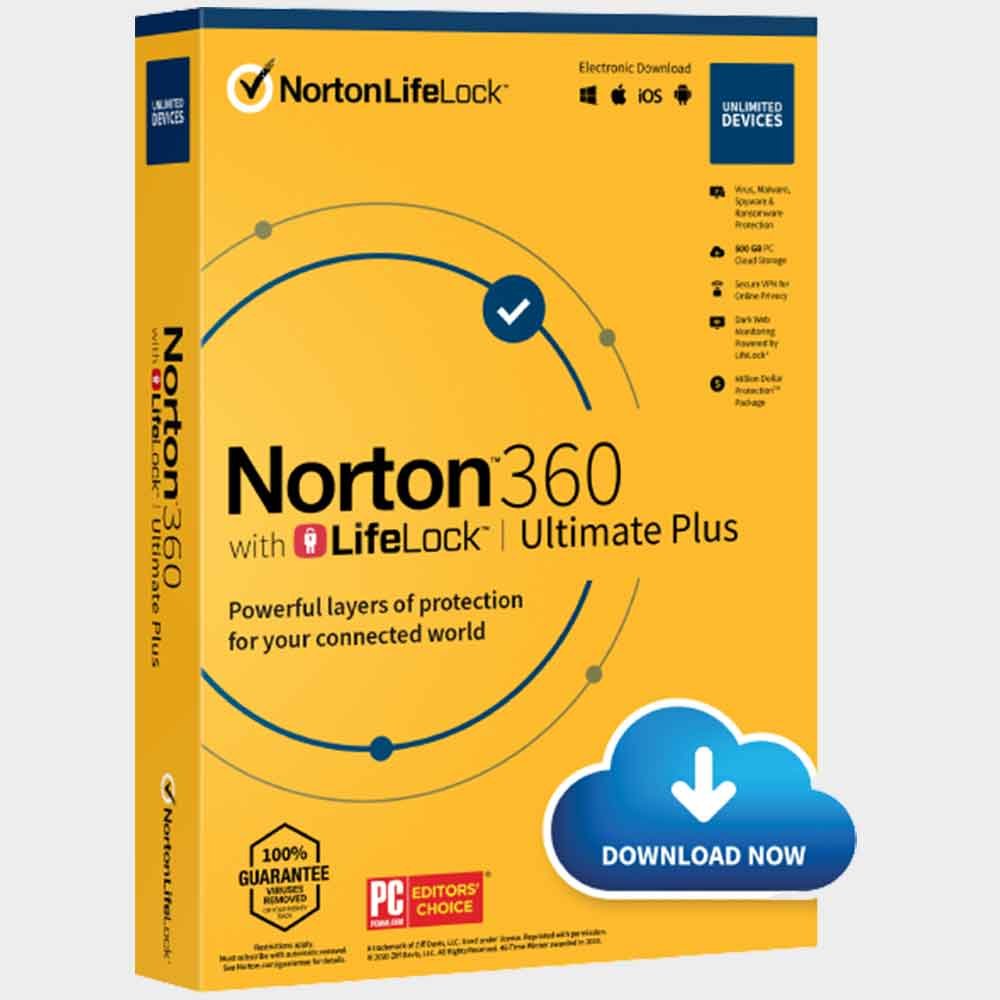
Norton 360 with LifeLock Ultimate Plus
$299.88 Buy Now -
Norton AntiVirus Plus For 1 Year
$34.99 Buy Now -
Avast Anti Track Premium 1PC/1 Year
$35.88 Buy Now -
Avast Cleanup 10 Devices/ Years
$34.99 Buy Now